
2.5-Inch Hard Disk Drive Data Recovery Help: A Complete Guide to Recovering Lost Data
Introduction
A 2.5-inch hard disk drive (HDD) is commonly used in laptops, portable external hard drives, gaming consoles, DVRs, and compact desktop systems.
Although these drives are reliable, they can still fail because of accidental deletion, physical damage, malware, file corruption, power issues, or normal wear over time.
Losing important files such as family photos, business documents, videos, or project data can be stressful. Fortunately, many lost files can be recovered if you take the right steps. This guide explains common causes of data loss, recovery options, and ways to protect your valuable information.
What Is a 2.5-Inch Hard Disk Drive?
A 2.5-inch HDD is a smaller version of the traditional hard drive. Unlike SSDs, it stores data on spinning magnetic platters that are read by moving read/write heads.
These drives are widely used in:
- Laptop computers
- External USB hard drives
- PlayStation and Xbox consoles
- CCTV DVR/NVR systems
- Portable backup devices
- Mini desktop computers
Typical storage capacities range from 320GB to 5TB.
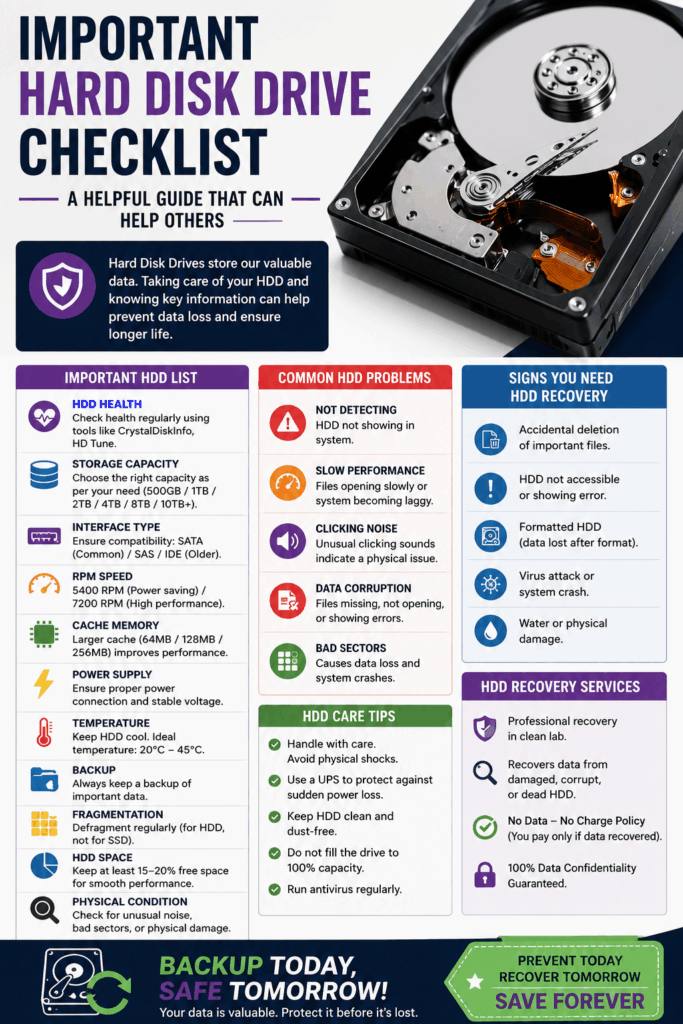
Common Causes of Data Loss
Several situations can cause data to become inaccessible.
1. Accidental Deletion
Files removed from the recycle bin or deleted using Shift + Delete can often still be recovered before being overwritten.
2. Formatting
Formatting a drive removes the file system information, but much of the original data may remain until new files replace it.
3. File System Corruption
Unexpected shutdowns, software crashes, or malware can corrupt NTFS, FAT32, or exFAT partitions.
4. Bad Sectors
Over time, hard drives develop damaged sectors that prevent files from being read correctly.
5. Mechanical Failure
Internal components such as the spindle motor or read/write heads may fail due to age or impact.
Common signs include:
- Clicking noises
- Grinding sounds
- Drive not spinning
- BIOS cannot detect the drive
6. PCB Failure
A damaged controller board may stop the drive from powering on.
7. Virus or Ransomware
Malicious software may delete, encrypt, or hide important files.
Signs Your Hard Drive Needs Recovery
Watch for these warning signs:
- Computer freezes while accessing files
- Slow read/write speeds
- Clicking or buzzing sounds
- Drive disappears from Windows
- “Drive not initialized” error
- RAW partition instead of NTFS
- Frequent read errors
- Missing folders
- Blue screen crashes during file access
First Steps After Data Loss
If your drive begins showing problems:
Stop Using It
Continuing to save files may overwrite recoverable data.
Disconnect the Drive
Prevent additional damage by safely removing it.
Avoid Formatting
Windows may ask you to format the drive. Do not do this until recovery attempts are complete.
Create a Drive Image
Professionals often clone failing drives before attempting recovery.
Software Recovery Options
If the drive is still detected by your computer, recovery software may help.
Useful for:
- Deleted files
- Formatted partitions
- Lost partitions
- Corrupted file systems
Recovery software scans the drive sector by sector to locate recoverable files.
When Professional Recovery Is Necessary
Professional recovery is recommended if:
- The drive clicks repeatedly
- It is not detected
- Water damage occurred
- Fire damage occurred
- Electronics failed
- The drive fell onto a hard surface
- Recovery software cannot access the disk
Professional laboratories use specialized equipment and clean-room environments to safely repair and recover damaged drives.
Types of Recoverable Files
Recovery specialists can often restore:
- Photos
- Videos
- Documents
- PDF files
- Excel spreadsheets
- Word documents
- Databases
- Email archives
- Music collections
- CAD projects
- Programming files
- Virtual machine images
Laptop Hard Drive Recovery
Most laptop HDDs use a SATA interface.
Recovery commonly involves:
- Removing the drive
- Connecting it using a USB-to-SATA adapter
- Creating a complete disk image
- Scanning the image for recoverable files
External Hard Drive Recovery
Many portable USB drives contain a standard 2.5-inch HDD inside the enclosure.
Common failures include:
- Broken USB connectors
- Damaged USB bridge boards
- Power problems
- Accidental drops
Removing the drive from the enclosure may allow direct SATA access for recovery.
Can Data Be Recovered After Formatting?
In many cases, yes.
If the drive has not been heavily reused, much of the original data may still exist on the magnetic platters.
The chances of success decrease as new data overwrites the old information.
Recovery Success Factors
Recovery success depends on:
- Type of damage
- Amount of overwritten data
- Age of the drive
- Mechanical condition
- Time since failure
- Proper handling after data loss
Stopping drive usage immediately significantly improves recovery chances.
How to Prevent Future Data Loss
Follow these best practices:
- Keep regular backups.
- Use cloud storage for important files.
- Replace aging hard drives before failure.
- Avoid dropping portable drives.
- Use surge protection.
- Install reliable antivirus software.
- Monitor drive health with SMART tools.
- Safely eject external drives.
HDD vs SSD Recovery
| Feature | HDD | SSD |
|---|---|---|
| Mechanical parts | Yes | No |
| Recovery after deletion | Often possible | More difficult due to TRIM |
| Noise during failure | Yes | Usually silent |
| Physical repair possible | Often | Rarely |
| Typical lifespan | 3–7 years | Varies by write cycles |
Frequently Asked Questions
Can I recover data from a clicking hard drive?
A clicking drive often indicates mechanical failure. Power it off immediately and seek professional recovery services.
Is free recovery software safe?
Many reputable recovery tools are safe for logical failures, but avoid installing them on the affected drive.
Can water-damaged drives be recovered?
In many cases, yes, but they should be handled by professionals without attempting to power them on.
How long does professional recovery take?
Recovery times vary from a few days to several weeks, depending on the severity of the damage.
Is recovered data guaranteed?
No. Recovery success depends on the condition of the drive and the extent of the damage.
Final Thoughts
A 2.5-inch hard disk drive remains a popular storage device for laptops and portable systems, but no hard drive lasts forever. When data loss occurs, acting quickly is the most important step. Avoid writing new data, do not repeatedly power on a failing drive, and choose the appropriate recovery method based on the problem.
Whether you’ve accidentally deleted important files, formatted the drive, or experienced a hardware failure, many recovery options are available. With careful handling and, when necessary, professional assistance, valuable documents, photos, and memories can often be successfully restored.